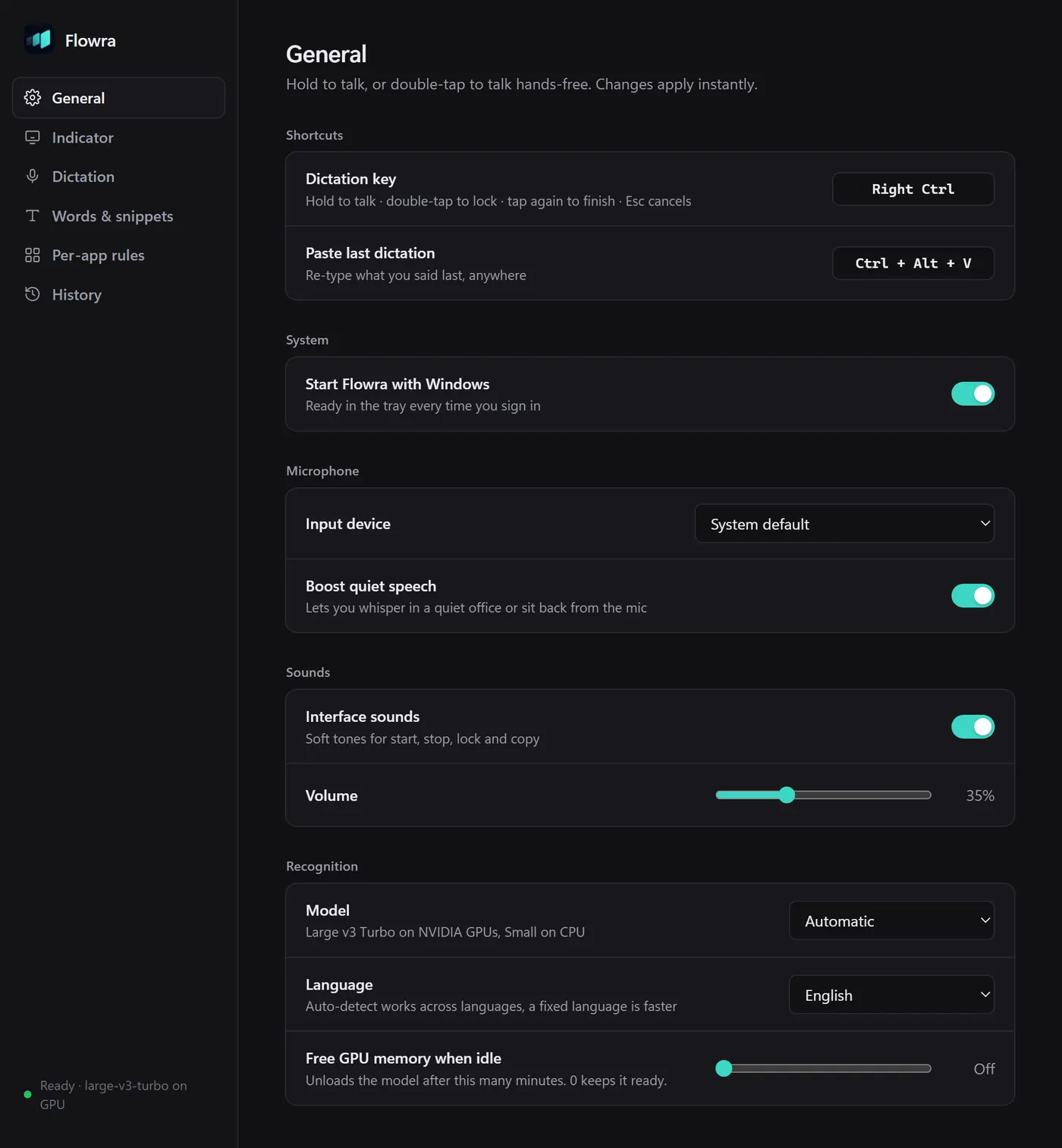
Hold Right Ctrl. Speak. Let go.
The text is pasted where your cursor is. Double-tap to keep listening hands-free, tap again to finish, Esc to cancel.
Flowra
A Windows app. Hold Right Ctrl, say what you want to write, and the text is typed where your cursor is.
Free · Open source · Speech recognition runs on your PC · Windows 64-bit
The text is pasted where your cursor is. Double-tap to keep listening hands-free, tap again to finish, Esc to cancel.
Drops um and uh, handles no wait corrections, and understands new line and bullet point.
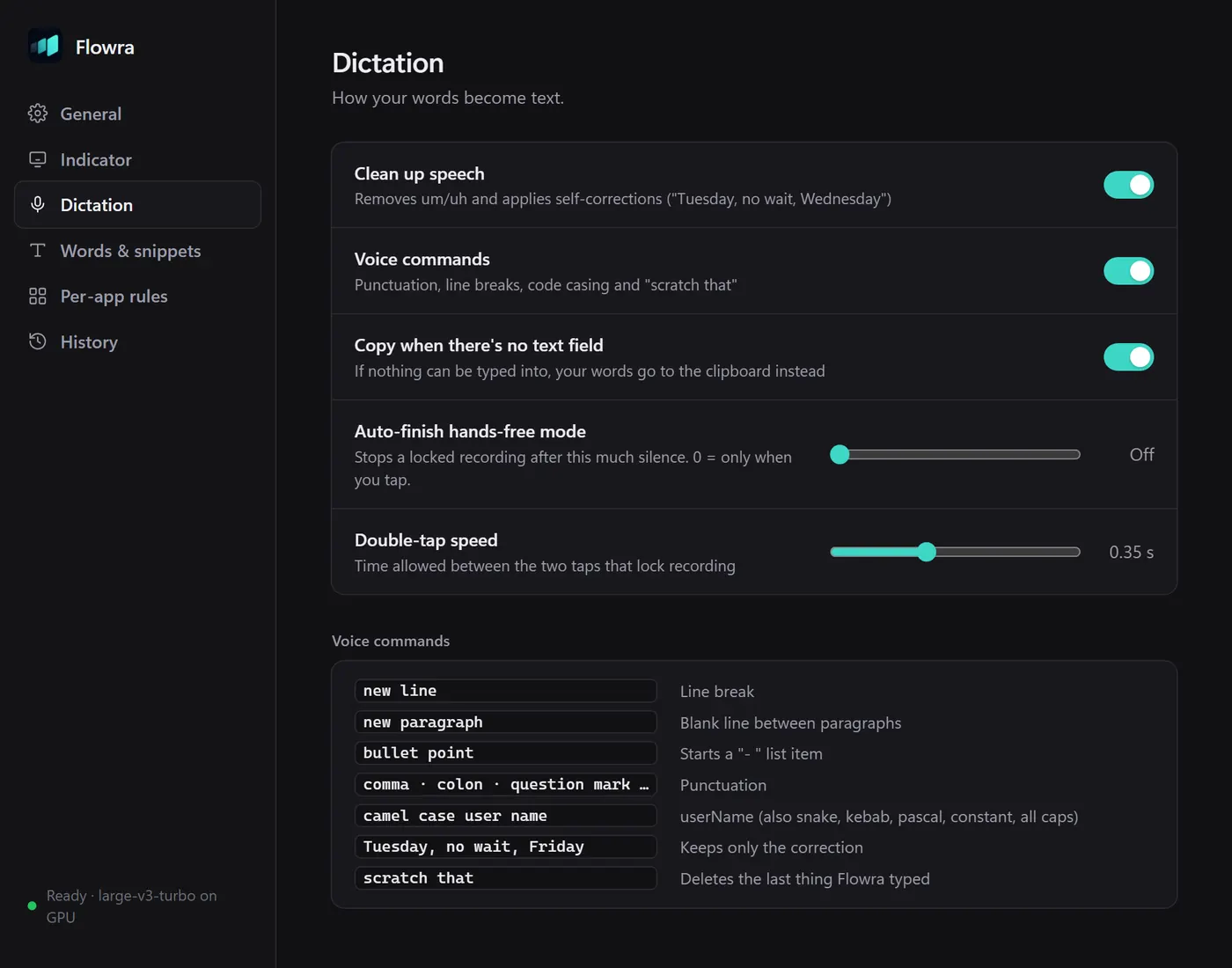
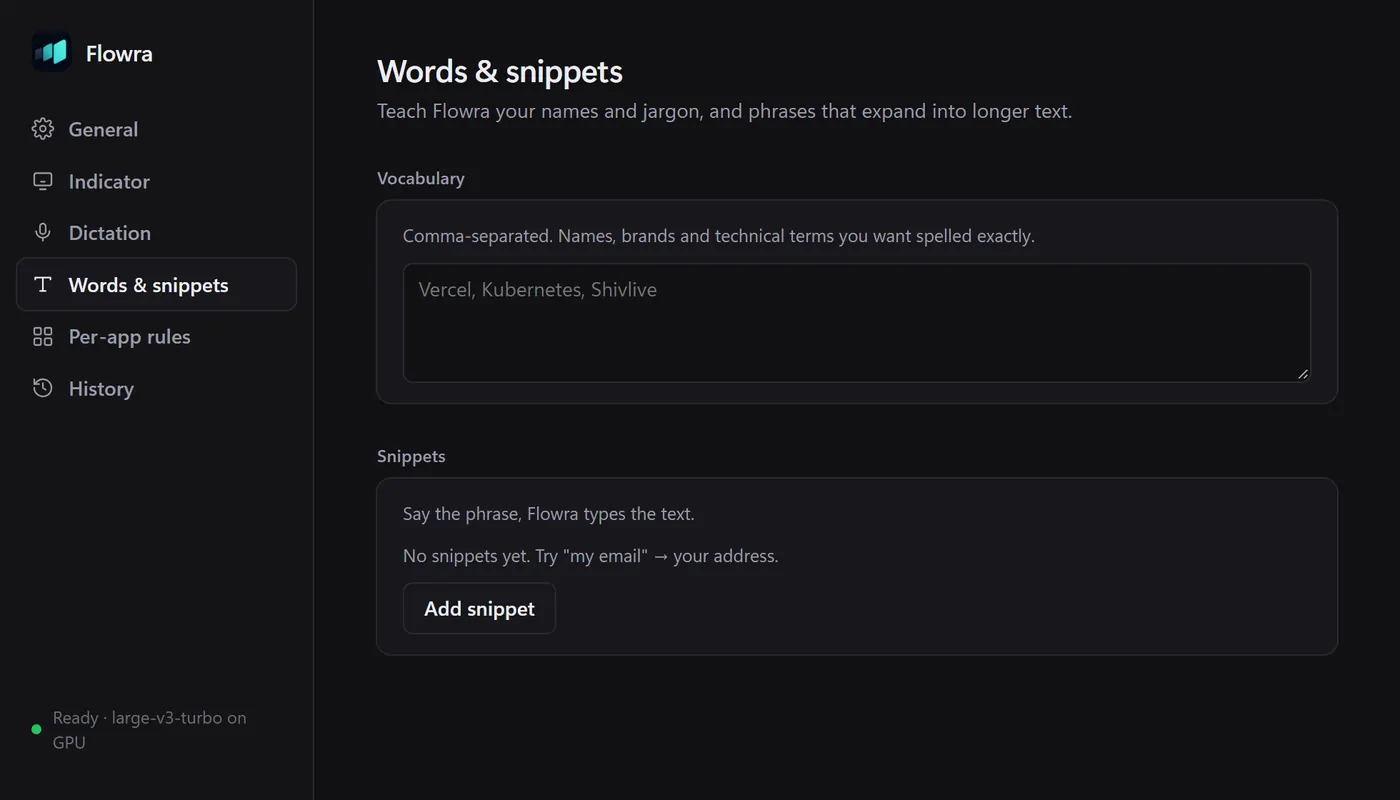
Add names and jargon so they are spelled right, and snippets that expand a phrase into longer text.
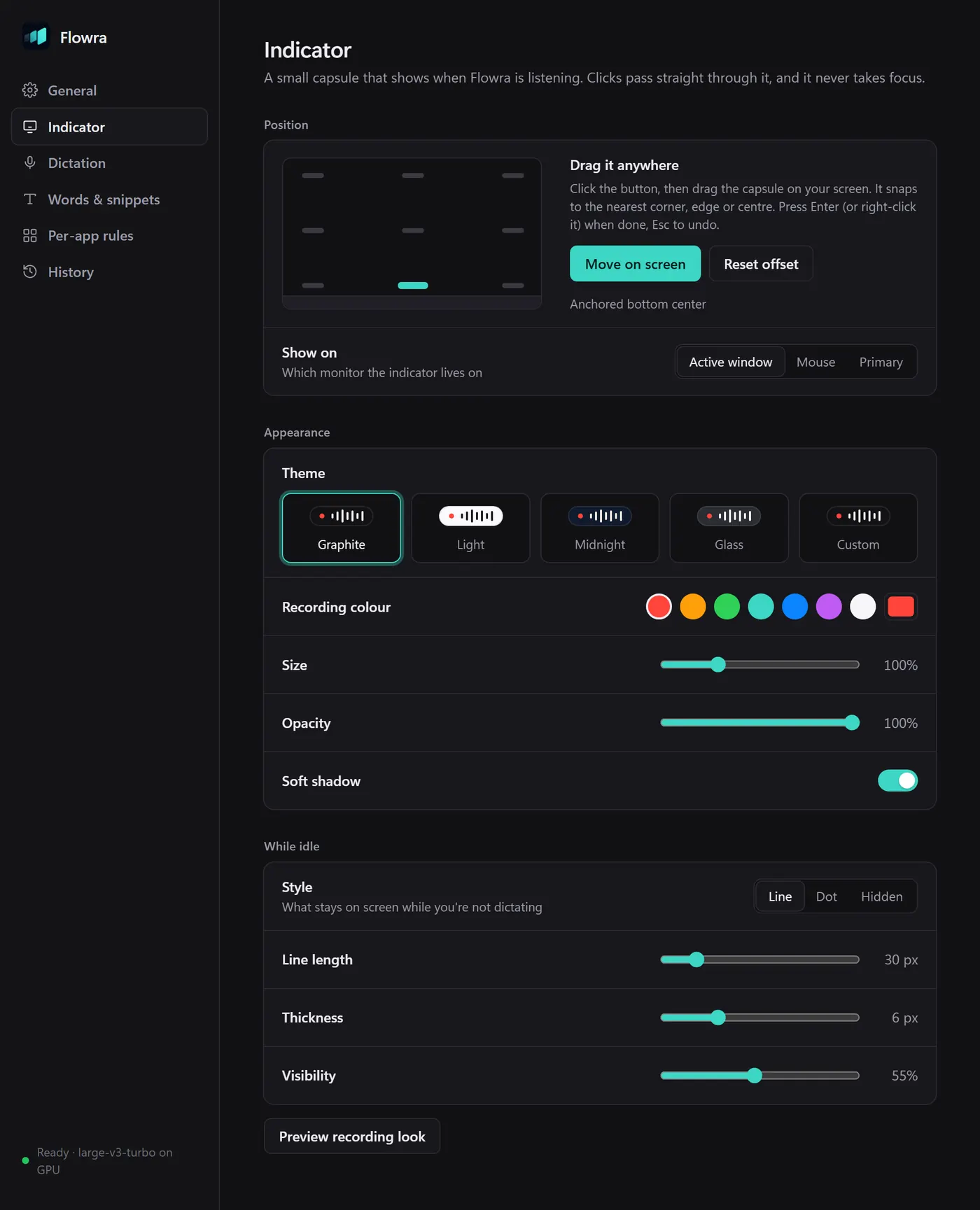
A small indicator turns into a live waveform while you record. Five themes, any size, and it never takes focus.
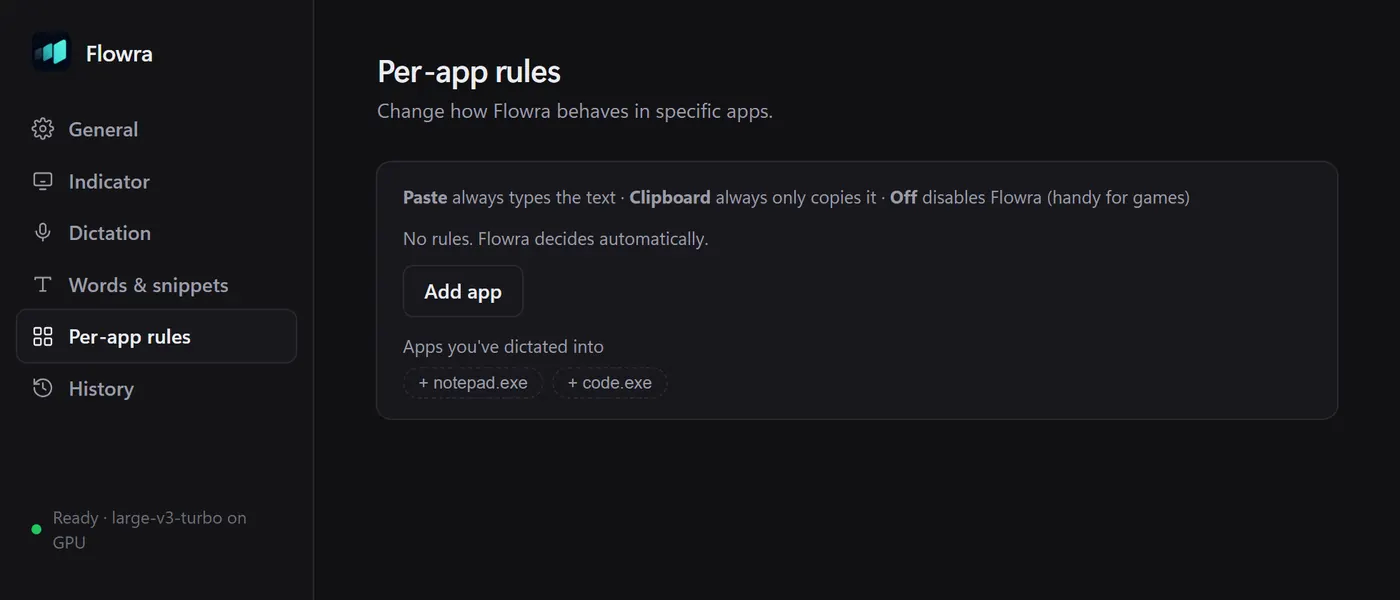
Always paste, copy only, or off, for each app.
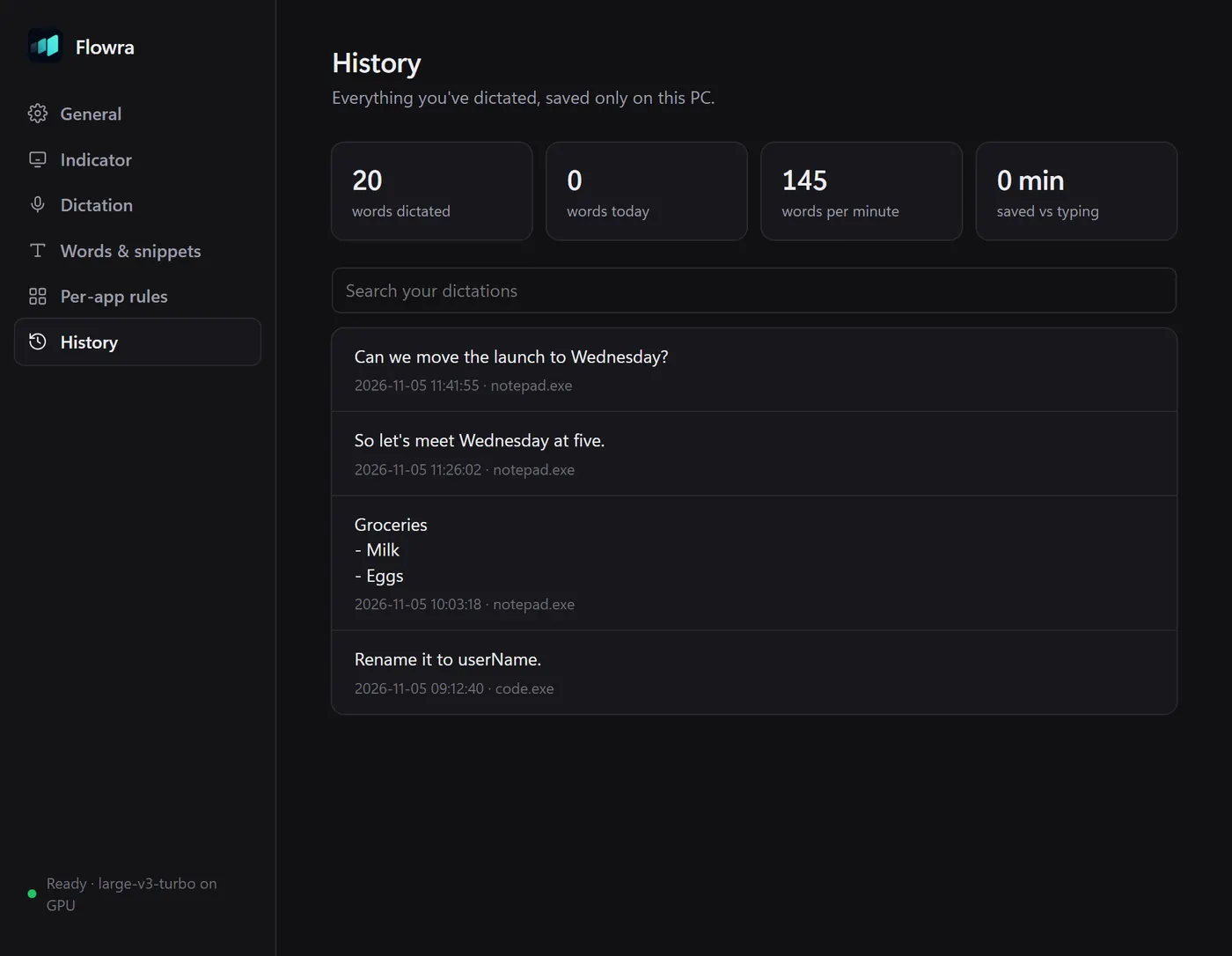
Search everything you dictated. It is saved only on this PC.
The installer is large because it includes the speech engine.
Flowra isn’t code-signed yet. It has only been tested on one PC: Windows 11 with an NVIDIA RTX 3060. Windows 10 and PCs without an NVIDIA GPU haven’t been tested, and only English has been tried. It can’t type into apps running as administrator, so the text is copied instead. Report an issue · View the source